AI Builder
What is AI Builder?
AI Builder is a feature of Microsoft Power Platform that lets you add AI to apps and flows without building or hosting the models yourself. You pick a model type, point it at your data, and use the result inside Power Apps and Power Automate. Behind the scenes it runs on Azure AI models, so the training, hosting, and scaling are handled for you.
What stays with you is the judgement around it: giving the model sensible input, testing what it returns, and deciding what happens next. An AI Builder model is almost never the whole solution. It is usually one step in a larger process, such as a flow that reads an invoice, checks the fields it found, and sends anything doubtful to a person.
Prebuilt and custom models
AI Builder splits into two kinds of model. A prebuilt model is ready for a common task, so you can call it straight away: reading a receipt, detecting the language of a message, or recognising text in an image. A custom model is one you shape for your own data, then train and publish, for example a model that reads your specific supplier invoices or predicts an outcome from your own history.
The tasks group roughly by the kind of data they work on:
Document processing. Pull fields, tables, and text out of invoices, forms, and receipts. This overlaps with what the wider field calls intelligent document processing.
Text. Classify a message, pick out entities such as names or reference numbers, or read sentiment. A support inbox can be split into billing, sales, and technical this way.
Prediction. Use past rows in a table to estimate an outcome or category. The answer is a probability, not a certainty.
Prompts. Drive a generative model to summarise, rewrite, or return structured text. A prompt built once can be reused in Power Apps, Power Automate, and Microsoft Copilot Studio.
Which model types and features you get can vary by region, licence, and product version, so confirm the current documentation before you commit to a design.
Prompts and generative AI
The newest part of AI Builder is prompt builder, where you write, test, and deploy instructions for a large language model. A prompt is simply the instruction you send the model to get a task done, and prebuilt prompts already exist for jobs like summarising or drafting a reply. Because prompts are triggered as Power Fx functions, the same prompt can sit inside an app, a flow, or a Dataverse component, and you build it once rather than wiring the model up separately each time.
AI Builder in a working process
Picture a finance mailbox that receives invoices all day. A cloud flow saves each attachment and sends it to an AI Builder document model, which returns the supplier, invoice number, date, and total. The flow then checks that the required fields are present and that the model reported enough confidence. Anything below the line goes into a queue for a person to check; only then does the process write the values into the accounting system.
A second example is a contact form. AI Builder classifies each message, so complaints go to support, quote requests go to sales, and unclear ones land in a general tray. Staff can log the cases it gets wrong, which feeds the next round of tuning. In both cases the value is not only the prediction. A usable solution also says what happens on missing input, low confidence, a timeout, or a model that is briefly unavailable.
AI Builder versus a custom-built model
AI Builder fits when a supported model type matches the problem and the solution already lives in Power Platform. Integration with apps, flows, and Dataverse is there from the start, and you do not manage the model infrastructure.
A hand-built model gives a data science team more control over architecture, training, evaluation metrics, and deployment. That can be worth it for unusual image or language problems, very large volumes, or requirements AI Builder does not cover. The choice is not all or nothing: a Power Automate flow can also call an external model through a connector or API. Compare more than the first build; weigh data preparation, monitoring, capacity, and error handling too.
Quality, governance and human review
Test a model on examples it has never seen, and include the awkward ones: poor scans, odd layouts, missing fields, unexpected languages. An average score hides exactly the cases where the process fails. Set thresholds for automatic handling, send low-confidence results to a person, and keep a human in the loop for payments, staffing, and other sensitive decisions even when the model is confident. Precision and recall help with classification, but the real cost of each kind of mistake decides where the line sits: a mis-read postcode is not a mis-read bank account number.
AI Builder runs inside Power Platform environments and carries capacity and licensing terms, so keep development and production apart and watch usage. Check what data reaches the model, where it is stored, and who can change model and prompt components. A model that works in a trial can behave differently at daily volume, and its accuracy can drift as documents, customers, or working methods change. Keep a fixed evaluation set and plan to review. AI Builder takes model management off your hands, but not ownership of the decision you automate with it.
Keywords
AI Builder
Microsoft Power Platform
Power Automate
Intelligent Document Processing (IDP)
Machine learning
Precision and recall
Generative AI
Microsoft Copilot
low-code
ai
From the blog.
More pieces from the field on the same topic.
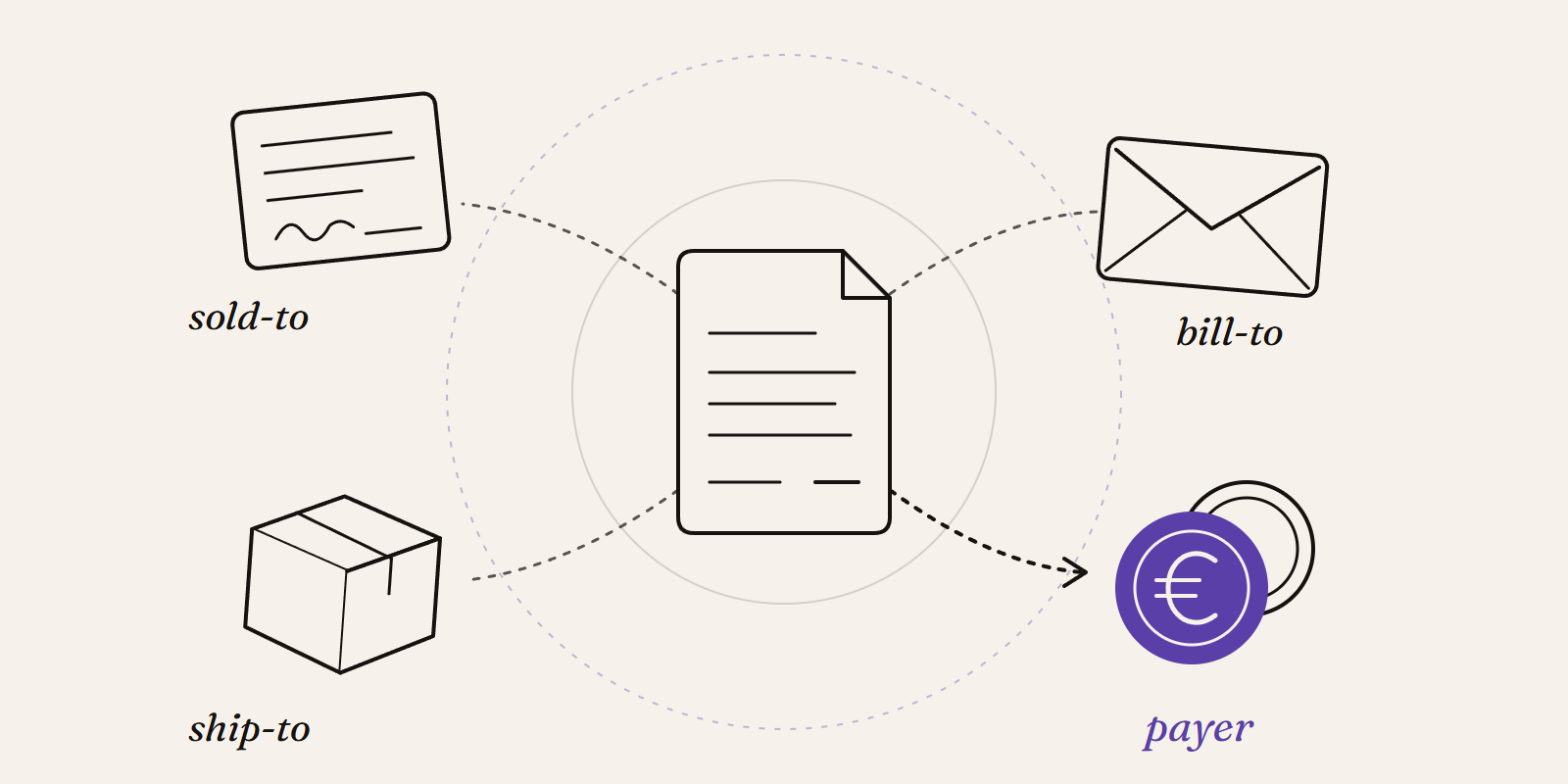
Sold-to, ship-to, bill-to and payer in SAP: who is actually your customer?
Sold-to, ship-to, bill-to and payer in SAP explained with a concrete example: who gets the invoice, whose account the receivable sits on, an...
New Data Panda connectors in August 2026
Seven new Data Panda connectors from August 2026: ECB rates, ProfitPlus Webshop, SAP S/4HANA, Exact Venice, OpusFlow, ABAX and Sprout Social...