DAX (Data Analysis Expressions)
What is DAX?
DAX stands for Data Analysis Expressions. It is the formula language behind Power BI, Excel Power Pivot and Analysis Services. Think of it as the language you use to teach Power BI how to calculate. With DAX you write formulas that bring numbers to life. You can total up sales, compare this year to last year, work out profit margins or surface growth trends.
Unlike Excel, DAX does not work on individual cells. It works on tables and the relationships between them. That makes it more powerful and more flexible. One formula can adapt automatically to whatever you happen to be looking at: per customer, per month, per product.
Is DAX the same as Excel formulas?
DAX looks a lot like Excel, but it does much more. It was built to work with data models, not flat lists. That means DAX can calculate across multiple tables, as long as a relationship exists between them.
A simple formula like
Total Sales = SUM(Sales[Amount])looks easy, but under the hood Power BI knows that this calculation should respect the filters of the visual it sits in. Show sales per country, and DAX only sums the rows that belong to each country.
The real power of DAX lies in context. Context decides which data a formula is applied to.
What does context mean in DAX?
Context is the heart of DAX. It controls which rows in your data are visible to a calculation at any given moment. DAX has two main forms of context: row context and filter context.
You can think of context as the lens Power BI uses to look at your data. When you add filters, like a slicer for a specific month or region, the lens changes. DAX then only sees what remains visible through those filters.
Row context
Row context means DAX is calculating something per row. When you create a calculated column, DAX walks through the table one row at a time, just like Excel does.
Example:
Line Total = Sales[Quantity] * Sales[UnitPrice]For every row in the Sales table, DAX multiplies the quantity by the unit price.
Filter context
Filter context decides which rows in your table are active at the moment of the calculation. In a Power BI visual that context is set automatically. If you show a chart per country, Power BI applies a filter for each country.
A formula like
Total Sales = SUM(Sales[Amount])is then evaluated within the filter for each country. DAX only looks at the rows that matter.
A practical example: imagine a chart showing revenue by month. When you click on March, DAX automatically restricts the calculation to rows that fall in March. Click on Belgium in another slicer, and now DAX only uses Belgian rows from March. Filter context keeps shifting in real time as you interact with the report.
CALCULATE() and context
The CALCULATE() function is unique in DAX: it lets you change or extend the filter context.
Example:
Sales BE = CALCULATE(SUM(Sales[Amount]), Customers[Country] = "Belgium")Here you tell DAX: "Calculate total sales, but only for customers in Belgium."
You can think of CALCULATE() as the remote control for context. It decides which filters are switched on or off. With it you can write formulas that deliberately behave differently from the default context.
The role of DAX in Power BI
In Power BI, DAX is the engine behind every calculation. You use it for three kinds of objects:
Measures
Dynamic calculations that adapt to the filters in your report.Total Sales = SUM(Sales[Amount])In a card visual this shows the grand total. In a chart by month it shows monthly sales.
Calculated columns
These are evaluated row by row and stored in the model.Profit = Sales[Amount] - Sales[Cost]Useful when you genuinely need the value at row level.
Calculated tables
You can build new tables on top of existing data.TopCustomers = TOPN(10, Customers, [Total Sales])Handy for quick summaries or curated lists.
A concrete example: imagine a retail chain with sales data per region and per month. With one DAX measure for Total Sales you can drive a monthly report, a country overview and a top 10 of stores, all without rewriting anything. DAX adapts to the context of each visual.
You write the calculation logic once. For every data point, DAX figures out the active filter context and applies the formula accordingly.
Together these three building blocks let you create dozens of insights from a single dataset.
DAX and the tabular model
DAX does not exist on its own. It runs on top of the tabular model, the way Power BI and Excel store and process data. You can think of the tabular model as the memory of Power BI: it holds your tables, columns and relationships. DAX is the language that says what to do with that data.
Under the hood DAX uses the VertiPaq engine, a technology that compresses data and keeps it in memory at very high speed. That is why Power BI can chew through millions of rows without breaking a sweat.
A useful comparison: the tabular model is the brain of Power BI, and DAX is the calculator that tells the brain what to do.
To keep performance healthy, write your DAX efficiently. Avoid unnecessary work inside visuals, prefer measures over calculated columns and make sure your model is well structured.
The difference between DAX and Power Query
People often mix up DAX with Power Query, but they do completely different jobs.
Power Query is for preparing data: cleaning it, splitting columns, merging tables and so on.
DAX is for calculating and analysing on top of that prepared data.
Power Query runs before the data is loaded into the model. DAX runs after the data is in the model.
A better analogy: Power Query is the builder laying the foundation, DAX is the architect who designs and calculates on top of it.
The history of DAX
Before DAX, there was an older language called MDX (Multidimensional Expressions). It was used in the early Analysis Services days at Microsoft and worked with "cubes". Powerful, but complex.
When Microsoft introduced PowerPivot in 2010, they wanted something simpler that would feel familiar to Excel users. DAX was born: a language that feels recognisable to anyone with a formula background, but powerful enough for serious data analysis. Later it grew into the core of Power BI.
Is DAX hard to learn?
A little, at first. Not because there is a lot of code, but because you have to learn to think differently. You need to understand how context works, how filters propagate through your model and when calculations happen. Once that clicks, the rest falls into place.
The biggest pitfalls in DAX
DAX is all about logic and context. If you do not grasp those properly, you often end up with results that look right but are not. Many beginners assume their formula is wrong, when really the issue sits in the context or in the data model. Below are the pitfalls that come up most often, with an explanation of why they happen.
1. Misunderstanding context
Most DAX mistakes come from context. DAX calculates values based on the filters that are active in your report. If you do not know which filters apply, you will get unexpected results.
A formula like SUM(Sales[Amount]) looks simple, but the result depends on where you use it. In a card it shows the grand total, in a table by country it shows the sum per country. People who do not see that filters are silently doing work usually go hunting for the bug in the wrong place.
Example: you build a measure called Total Sales and use it in a table by customer. Numbers look fine, then in another visual they suddenly drop. The cause? An active slicer is filtering down a subset of customers.
Tip: use functions like REMOVEFILTERS() or ALL() to deliberately control or clear filters.
2. Wrong or missing relationships
DAX calculates through the relationships between tables. If those relationships are not set up correctly, or point in the wrong direction, a calculation can come back blank or just wrong.
Real-world example: you want to show revenue per customer, but the relationship between Customers and Sales is set up backwards. Power BI then has no idea how to line the data up.
Tip: always check that your relationships make logical sense (one customer to many sales) and that the direction matches how your DAX formulas work.
3. Too many calculated columns
Many people reach for calculated columns by default. It feels convenient, but it bloats your model and slows it down. Measures are more flexible and more efficient because they only compute when they are actually needed.
Tip: use calculated columns only when you genuinely need a value stored at row level. For anything that summarises, use measures.
4. Misusing CALCULATE()
CALCULATE() is the most powerful function in DAX, and also the trickiest. It changes the filter context. If you do not understand that, you will get wrong results fast.
Tip: learn how filters work first, before you start stacking CALCULATE() with other functions.
5. Time intelligence without a calendar table
Functions like SAMEPERIODLASTYEAR() or TOTALYTD() only work properly when you have a real calendar table. Without one, DAX has no way to understand how months and years connect.
Tip: always create a separate date table and mark it in Power BI as the official "Date table".
6. Too much logic inside visuals
Some users build complex formulas directly inside visuals. That makes your report slow and a nightmare to maintain.
Tip: put your logic in measures, not in visuals. Your model stays tidy and reusable.
7. Poor naming
A model full of measures called Measure1 and Measure2 is unworkable.
Tip: use clear names like Total Sales, Margin % or Sales LY. Use folders or prefixes to keep things organised.
8. Thinking like Excel
DAX looks like Excel, but it works very differently. In Excel you calculate per cell. In DAX you calculate per context. People who try to use DAX as if it were Excel get stuck quickly.
Tip: let go of the cell mindset. Think in tables, relationships and filters.
Learning DAX in practice
Want to get hands on with DAX? Start with the basics and build up step by step. A few useful resources:
Microsoft Learn: free modules on DAX and Power BI.
SQLBI.com: clear explanations and examples from DAX experts Marco Russo and Alberto Ferrari.
YouTube channels: Guy in a Cube and Data Panda show DAX applied in real situations.
Combine the theory with practice. Build small reports and watch how context shifts as you interact with them. That is by far the fastest way to really understand DAX.
Keywords
DAX
Data Analysis Expressions
Power BI
Power Pivot
tabular model
VertiPaq
Power Query
business intelligence
self-service analytics
DAX context
Power BI formulas
Microsoft Fabric
From the blog.
More pieces from the field on the same topic.
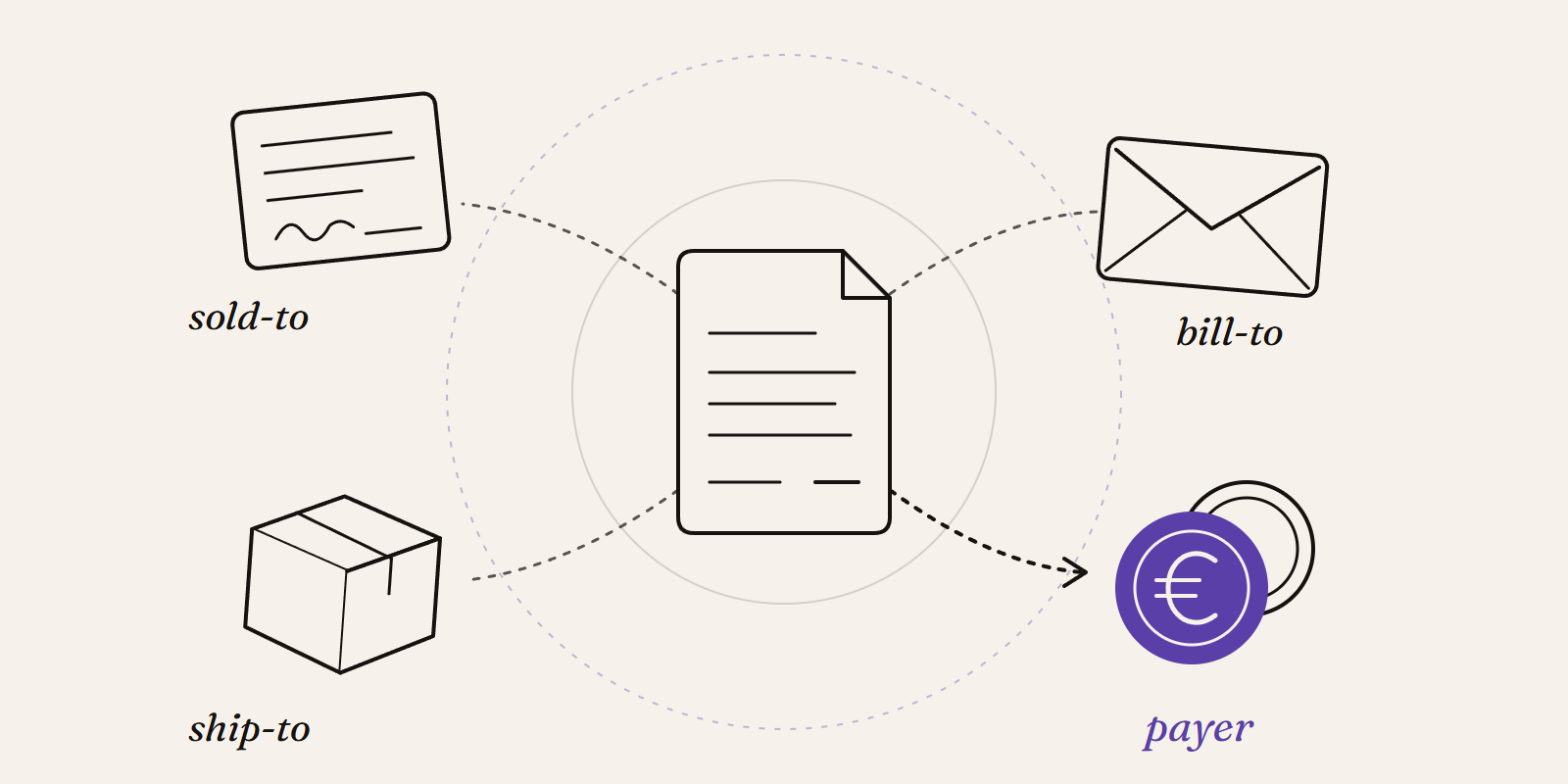
Sold-to, ship-to, bill-to and payer in SAP: who is actually your customer?
Sold-to, ship-to, bill-to and payer in SAP explained with a concrete example: who gets the invoice, whose account the receivable sits on, an...
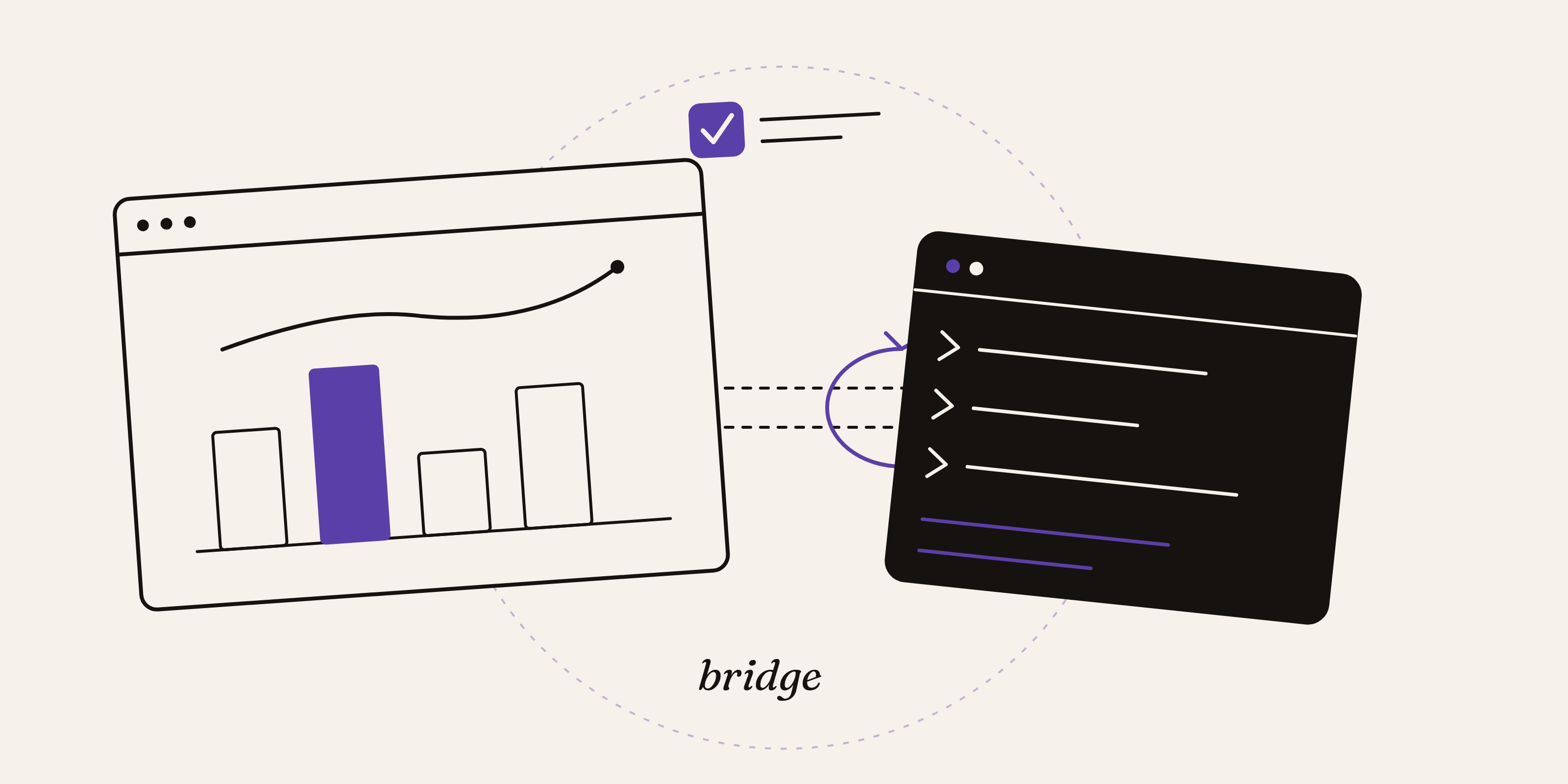
How to enable the Power BI Desktop Bridge (and the CLIs the docs leave out)
The June 2026 Power BI Desktop Bridge lets an agent build and verify reports. Here is how to enable it and install the two CLIs the docs lea...