Row Level Security (RLS)
What is Row Level Security?
Row Level Security (RLS) is a way to limit data to the rows in your dataset that a specific user is allowed to see. You can build one report, and the person opening it only sees the data they have access to.
The principle is straightforward. You have one central dataset. Each user sees their own slice of it. A salesperson sees only the customers in their territory. A store manager sees only the numbers from their own store. Leadership sees everything. RLS handles all of that automatically based on who is logged in.
RLS works by combining roles with filters. Inside each role you define which rows are allowed. That happens with a DAX filter, usually applied to a dimension table such as region, store or customer. The relationships in the model push the filter onwards into all the fact tables.
Without RLS, you often end up building separate reports for every department. That means more work and more room for mistakes. With RLS everything stays central and the model stays clean. You build one template, and effectively everyone gets a personalised report from it.
A familiar example is an SME with several warehouses. The company wants one report for stock and orders. Thanks to RLS each warehouse only sees its own products and transactions. The model is identical for everyone, but the visible rows differ per user.
What is the big advantage of Row Level Security?
RLS lets you share trusted reports without exposing sensitive data to the wrong people. You do not have to maintain separate datasets or copies for different teams. One well-built model is enough. That makes administration easier and reduces the risk of mistakes creeping in.
For many SMEs that is a major win. Picture a business with several stores. You want each store manager to look at their own revenue without seeing what the other stores are doing. At the same time leadership needs the full picture. RLS handles that cleanly with no extra effort.
RLS also supports privacy rules and internal agreements. Departments like HR, finance and sales do not all need the same level of access. By using RLS you only show the rows that match someone's role. That builds trust in the report and keeps data from leaking to people who should not have it.
Another benefit is that you avoid building technical copies of the data model. Fewer models means less maintenance. When the source changes, you only have to adjust it in one place. That makes your reporting more stable and easier to scale.
How does RLS work?
RLS works with roles and filters. A role contains the rules that decide which rows are visible. The filter itself is a DAX expression that you usually attach to a dimension table. Think of tables like region, store or customer. The relationships in the model make sure the filter automatically flows into the fact tables.
The user is identified through USERPRINCIPALNAME(). That is normally the email address someone uses to sign in to Power BI or Microsoft Fabric. You use that value to decide which rows are kept and which are filtered out. That way you can show the right subset per person, team or Entra group.
In Power BI Desktop you create roles in the model. In the Power BI Service and Fabric those roles are applied as soon as someone opens the report or connects to the semantic model. It works equally well for visual reports and for connections coming from Excel or external tools. That keeps your security central and consistent.
Common RLS patterns in DAX
There are several ways to set up RLS. Each approach has its own strengths depending on how your organisation works. Below you will find the patterns we use most often. They all build on the same idea: filter on a dimension and let the model relationships secure the rest.
Static RLS
With static RLS you hard-code the visible value inside the role itself. This is handy when you have a fixed group with permanently identical access.
Example:
'DimRegion'[Region] = "Flanders"This role only shows the rows for Flanders.
Useful for small models or temporary scenarios.
Dynamic RLS by email
With dynamic RLS you store each user's access rights in a separate table. Instead of manually assigning users to particular groups, the assignment happens dynamically based on the username. You filter using USERPRINCIPALNAME().
Example role:
'DimRegion'[Region] IN
CALCULATETABLE(
    VALUES('UserRegion'[Region]),
    'UserRegion'[Email] = USERPRINCIPALNAME()
)
For this you need a 'UserRegion' table that lists, per user, the regions they have access to. In the example below Ava has access to Antwerp and Flemish Brabant. Bob only has access to Antwerp. In a small environment you can manage these rights in a simple Excel file and load it as the basis for Row Level Security. More often the rights come from another application or from Entra ID. That way you can manage users in another system and let those rights flow through to Power BI and Microsoft Fabric.
|-------------------|-------------------|
| Email             | Region            |
|-------------------|-------------------|
| ava@datapanda.eu  | Antwerp           |
| ava@datapanda.eu  | Flemish Brabant   |
| bob@datapanda.eu  | Antwerp           |
|-------------------|-------------------|
You usually do not need a direct relationship between 'UserRegion' and 'DimRegion'. The DAX filter does that work.
Dynamic RLS works well for larger groups and for organisations where access rights change often.
Hierarchical RLS with PATH
You use hierarchical RLS when someone should not only see their own data but also the data of everyone below them. Think of a team lead who can see their direct reports, but not the teams of other managers. Or a regional manager who can look at every province in their region. The model follows the tree structure of your organisation and grants access based on that.
What do you need in the model?
You need a table like 'DimEmployee' with at least:
[EmployeeID]
[ManagerID]
[Email]
From those fields you can build the hierarchical line. In Power BI you then create a calculated column with PATH(). That function builds a kind of trail from an employee up to their managers, or the other way around.
Example:
Path = PATH('DimEmployee'[EmployeeID], 'DimEmployee'[ManagerID])Use the DAX PATH() function in a calculated column. Now every row carries a complete path from the top of the structure down to that employee.
Next, create an RLS role with this filter:
VAR MeID =
    LOOKUPVALUE(
        'DimEmployee'[EmployeeID],
        'DimEmployee'[Email], USERPRINCIPALNAME()
    )
RETURN
PATHCONTAINS('DimEmployee'[Path], MeID)
With this DAX a user gets access to themselves (their own EmployeeID) and to anyone whose path contains that ID. So you see your own rows plus everything that hangs below you.
Imagine a sales department with three levels:
Sales Director
Regional managers
Sales reps
A sales rep only sees their own data.
A regional manager sees themselves and every rep in their region.
The Sales Director sees the whole team.
You do not have to create a separate role per level. The path decides automatically who gets which rows.
Governance of Row Level Security
A good RLS model only really works when it is easy to manage. The more users and roles you have, the more important it gets to keep everything tidy. Below you will find the most practical ways to organise and audit your RLS setup, both in Power BI and in Fabric.
Work with one central security table
Whether you manage rights based on region, customer, store or tenant, always use one security table per domain, or combine everything into a broader table like UserAccess.
Example columns:
[Email][Key](e.g. Region, Customer, Tenant, Store)optional:
[RoleType]or[AccessLevel]
The benefit: you manage rights in one place. You never have to touch DAX or roles in the model. You just update the security table and republish.
Document your roles
In Power BI Desktop you can see all roles via Modeling → Manage roles. Capture them in an internal document or wiki. Describe:
which tables get filtered
which columns are used
the DAX logic behind it
which security source feeds the table
For larger models, this makes life much easier for whoever is administering them.
Export and audit RLS via XMLA
Through the XMLA endpoint you can read out all roles and their DAX filters. You can do that with PowerShell, SSMS or Tabular Editor.
For example, run a daily export and store the result in a Git repo. That way every change is visible and you can spot RLS drift over time.
Useful checks:
roles without members
tables without a filter
filters that are
TRUE()or emptyexternal domains in email addresses
duplicate or contradictory rules
That gives you a foundation for audit and compliance work.
From the same XMLA exports you can build an RLS dashboard that tracks access rights across every data model in one place.
Use Tabular Editor for management
Tabular Editor lets you inspect and edit roles much faster. You see all filters in one overview and can copy or rework DAX easily. You can also write scripts to export, audit or generate roles automatically.
The benefit: you treat RLS more like "code", which scales much better for larger models.
Always test via View as role
In Power BI Desktop you use View as to test how a role behaves.
Test at least three scenarios:
a user with one value
a user with multiple values
a user who is not in the security table at all
Each time, check that all sensitive tables get filtered properly and that the rows are correct. Add a test user who is not allowed to see anything, so you are certain that RLS does not leak data.
Separate access management from workspace permissions
RLS only behaves the way you intend when users have Viewer access.
Contributors, Members and Admins always bypass RLS. Document that clearly and make sure users get the right permissions on workspaces and apps.
Automate where you can
With Power Automate, Azure Functions or Fabric pipelines you can populate the security table automatically from an HR system, CRM or Entra ID. That avoids manual mistakes.
Combine that with an automatic refresh of your dataset, and your RLS stays current at all times.
Provide a fallback
The best models include a fallback: a default role or explicit "no access" logic for users who are not in the security table. That way reports handle those cases safely without unexpected results.
Testing and validating RLS
An RLS model is not just something you configure, it is something you have to prove works. Testing is at least as important as building. You want to be sure that users only see what they are allowed to see, even when they connect via Excel, Analyze in Excel or directly to the semantic model in Fabric. Below are the most practical ways to test RLS reliably.
Test with "View as role" in Power BI Desktop
This is the fastest way to check if your filters are right.
Go to Modeling → View as.
Pick the role you want to test.
Check whether the rows in your report are correct.
Test users who are not in the security table as well.
While testing, use a few simple visuals:
a card with
COUNTROWS()on your most important fact tablesa table with all permitted values (regions, customers, stores)
a measure that shows the email address:
User = USERPRINCIPALNAME()That way you can immediately see which filter is active.
Test with real accounts in the Power BI Service
Desktop is convenient, but in the Service USERPRINCIPALNAME() always resolves correctly. So you also need to test the roles with real users or test accounts.
Publish the model
Share the report with a test user
Give that user Viewer permissions
Have them open the report and confirm that the data is right
That is how you make sure RLS also works in dashboards, apps and shared reports.
Test direct access to the semantic model (e.g. via Excel)
Users can connect to your dataset from Excel or external tools. RLS has to keep working there too.
So test:
Analyze in Excel
Get Data → Power BI Dataset in Excel
Queries against the Fabric semantic model
Check that the same totals and the same allowed rows show up. If someone sees more in Excel than in Power BI, there is a problem with roles or workspace permissions.
Sometimes the data in a Power BI report looks restricted, but a user actually has more access to the underlying data than you would expect.
Test with XMLA queries
You can automate the same test through the XMLA endpoint. That is useful for larger models. You send a query that counts how many rows a user sees.
Example:
EVALUATE
ROW(
    "User", USERPRINCIPALNAME(),
    "RowsDimCustomer", COUNTROWS('DimCustomer'),
    "RowsFactSales", COUNTROWS('FactSales')
)
You run this query for every role or user. That gives you hard numbers to confirm that filters are flowing through as intended.
For organisations with strong data governance needs, an automated test suite based on XMLA queries can keep compliance high without becoming a heavy load on IT. Start building it as early in the development cycle as possible so nothing gets forgotten.
Test on sensitive tables
Some tables are more sensitive than others, like personnel records, customer lists or financial data. For those tables, check more thoroughly:
are all rows properly limited?
are there no empty filters or accidentally too-broad filters?
are the tables related correctly to the dimensions that carry RLS?
A small mistake here can quickly turn into a data leak.
Test the RLS + OLS combination
If you also use Object Level Security, the two need to be tested together.
Can a user see a column that should be hidden?
Can users query columns through Excel that should not be visible?
Is there overlap between roles that creates unexpected access?
RLS and OLS are separate layers. Always test both.
Test users who fall outside the security table
Every RLS setup needs predictable behaviour for "forgotten" users.
Test at least:
a user present in the security table → gets the correct subset
a user with multiple rows → gets the combined subset
a user with no match → should see nothing or an empty dataset
That way new colleagues or external partners do not produce surprises when they get access.
RLS and Object Level Security (OLS)
Row Level Security and Object Level Security complement each other nicely. RLS decides which rows a user can see. OLS decides which columns or whole tables are visible. Together they create a clear, secure separation between different user groups. RLS on its own is often not enough, especially when there is personal or financial data sitting inside the model.
What does RLS do?
RLS filters the data inside a table. You restrict the rows based on a value such as region, customer, store or employee. A salesperson sees only their own customers. A store manager sees the numbers from their store. Leadership sees every row.
In DAX, RLS works with filters like:
'DimRegion'[Region] IN
CALCULATETABLE(
    VALUES('UserRegion'[Region]),
    'UserRegion'[Email] = USERPRINCIPALNAME()
)
The filter decides which rows survive the moment someone opens the report.
What does OLS do?
OLS hides whole objects: columns or tables. That does not happen in DAX, it happens in the model metadata.
A few examples:
column
[Salary]visible only to HRcolumn
[Email]hidden from external partnersfull table
DimPersononly shown to leadership
If a column is hidden via OLS, it cannot even be queried directly through Excel, DAX Studio or the XMLA endpoint. That is an important extra layer of security.
When do you use RLS?
Use RLS when users may see the same columns but not the same rows. For example:
sales reps with access to their own region
customers who can only look at their own data
employees who can only see their team's reports
RLS is ideal for splitting data along a key like region or customer.
When do you use OLS?
Use OLS when part of your data is too sensitive to be shown widely. Think of:
salary data
national ID numbers
medical information
personal addresses
columns you would rather keep internal
With OLS you hide those columns completely. Users do not even know they exist.
How do RLS and OLS work together?
The strong combination looks like this:
RLS decides which rows are visible.
OLS decides which columns even exist for that role.
Example:
A manager may see the rows for their team, but not the [Salary] column.
RLS filters the team.
OLS hides the column.
That way the manager only gets the information they actually need.
Example
An SME with ten teams wants one HR report for everyone.
HR sees everything: every row and every column.
Team leads only see the rows of their own team (RLS).
Team leads cannot see salary data, so
[Salary]is hidden via OLS.External consultants only see anonymised data. For them, columns like
[Name]and[Email]are hidden via OLS.
The result: one dataset, three types of users, all securely served.
Best practices for managing RLS
An RLS model only stays trustworthy if you build and maintain it carefully. Below are practical guidelines that keep your RLS clear, stable and easy to maintain. They apply to both Power BI and Fabric and work for small and large organisations alike.
Use Entra Security Groups
Rather than managing individual email addresses, work with Entra Security Groups. Give each group a clear name like RLS_Sales_Flanders or RLS_CustomerA.
Benefits:
management happens in Entra, not in Power BI or Fabric
new users automatically inherit the right access
less room for error
Make sure you use real Security Groups, not Microsoft 365 groups with a mailbox.
Build RLS dynamically with a security table
Use a table like UserAccess, UserRegion or TenantMap to drive your access rules. That works well for scenarios where users change often or where you want to manage several keys at once.
This approach makes RLS flexible: you only update the table, not the model itself.
Keep RLS simple by filtering on dimensions
Always apply RLS to a dimension table, never directly to a fact table. The relationships to the facts will handle the rest of the filtering. That keeps your DAX simpler and reduces the risk of data leaks.
Avoid bidirectional relationships, because they can create unexpected filter paths.
Bring RLS into your DevOps pipeline
If you use CI/CD, add some checks:
verify that every RLS role has at least one filter
verify that critical tables either have a filter or an OLS rule
flag roles without members or security tables with missing values
That stops bad versions from making it into production.
Avoid heavy DAX inside your RLS
Keep the RLS logic as simple as possible. Don't use heavy calculations or text transformations inside your filter.
Avoid things like:
LEFT(UPPER(TRIM('DimRegion'[Region])), 5) IN ...Work with cleaned-up columns instead, or with a prepared table built in Power Query.
Simple, direct comparisons are faster and safer.
Provide clear fallback rules
New colleagues, consultants or external partners are sometimes not yet in your security table. Test what happens then.
Best practice: let those users see no rows at all.
Things to watch out for
Beyond the basics, there are a few less-known points that usually only surface in larger or more sensitive setups. These notes help make your RLS model dependable when the stakes get higher. They are especially useful when you have many users, complex data flows or strict security demands.
RLS is bypassed by owners and admins
Dataset owners, workspace admins and users with edit rights always see all the data. They sit outside RLS. So make sure end users only have Viewer access, and that admin rights stay limited to people who genuinely need them. Document that clearly so there is no confusion later.
Watch out with composite models
In Composite Models, RLS only applies to the imported tables. Tables coming in via DirectQuery have to get their security from the source. If you use both RLS in Power BI and security in the source database, you have to check that the two layers line up properly.
Shared datasets carry the same RLS
When several reports use the same dataset, every report inherits its RLS. That is convenient, but it requires discipline. If you make a meaningful change to RLS, you also need to check how it affects every report that hangs off the same dataset.
Performance can vary per role
Some roles can be slower, especially the ones with broad access rights. Use DAX Studio to see which roles produce heavy queries.
Tips:
Always filter on the key column of a dimension
If a transformation is unavoidable, do it once during data load rather than inside the RLS filter
Add extra security at the source
For very sensitive datasets you can add additional restrictions inside the source itself, such as data masking or row filtering in SQL. That gives you two layers of protection: one in Power BI and one in the data source. This is especially useful when the report is shared externally.
Build a small internal "RLS log"
Keep a simple overview of changes to RLS:
which roles exist
which filters are tied to them
which tables count as sensitive
which security table feeds them
That stops the knowledge from living only in one administrator's head.
Think ahead about future use
When you extend the model, RLS has to evolve with it. New tables, relationships or dimensions can affect existing RLS filters. Make RLS part of your standard review process whenever the data model gets extended.
Worked example
A concrete example makes RLS in practice easy to picture. Imagine an SME with several locations. The company wants one central Power BI report for sales, stock and HR information. The data lives in one semantic model in Fabric. Even so, not every user is allowed to see everything. Each store manager only sees their own store, account managers only see their own customers, and head office keeps the full overview.
Setting up the model
The company works with three key dimensions:
DimStorewith all stores and their StoreIDDimCustomerwith customers per regionDimEmployeewith team structure and reporting lines
On top of that there is one security table UserAccess that holds the access rights per user. That table is refreshed automatically every night from the HR system and contains columns like:
[Email][StoreID][CustomerID][RoleType]
A user can have several rows. That way a regional manager can be given several stores, and a key account manager several customers.
Dynamic filter per store
For the store managers, RLS is applied to the DimStore table. The DAX filter decides which stores are visible:
'DimStore'[StoreID] IN
CALCULATETABLE(
    VALUES('UserAccess'[StoreID]),
    'UserAccess'[Email] = USERPRINCIPALNAME()
)
A store manager in Bruges only sees StoreID 103, while a regional manager might see 103, 104 and 105 at the same time.
Filter at customer level
Account managers get access through the same approach, but now on DimCustomer:
'DimCustomer'[CustomerID] IN
CALCULATETABLE(
    VALUES('UserAccess'[CustomerID]),
    'UserAccess'[Email] = USERPRINCIPALNAME()
)
The company does not need several models. Everything happens in one dataset thanks to dynamic filtering.
Hierarchy for the HR team
The HR department uses a hierarchical structure. Team leads can see their own team and everything below it. For that, a calculated column Path is added to DimEmployee. The role then contains:
VAR MeID =
    LOOKUPVALUE(
        'DimEmployee'[EmployeeID],
        'DimEmployee'[Email], USERPRINCIPALNAME()
    )
RETURN
PATHCONTAINS('DimEmployee'[Path], MeID)
That way every team member gets a clear and well-bounded view of their people.
OLS for sensitive information
Salary data, national ID numbers and home addresses are fully protected via Object Level Security. Only HR sees those columns. Team leads and managers see the same rows but without those sensitive fields. That keeps the report secure while the model stays central.
What end users actually see
End users open their Power BI app. They automatically only see the data that belongs to them. A store manager does not even notice that other stores exist. Leadership of course sees everything. HR sees everything plus extra columns. Account managers only have a view on their own portfolio.
When someone changes role internally, HR only updates the UserAccess table. On the next refresh, RLS in Power BI and Fabric is correct again. No extra reports. No double work. No room for mistakes.
Keywords
Row Level Security
RLS
Power BI
Microsoft Fabric
data security
DAX filters
OLS
Object Level Security
security table
data governance
From the blog.
More pieces from the field on the same topic.
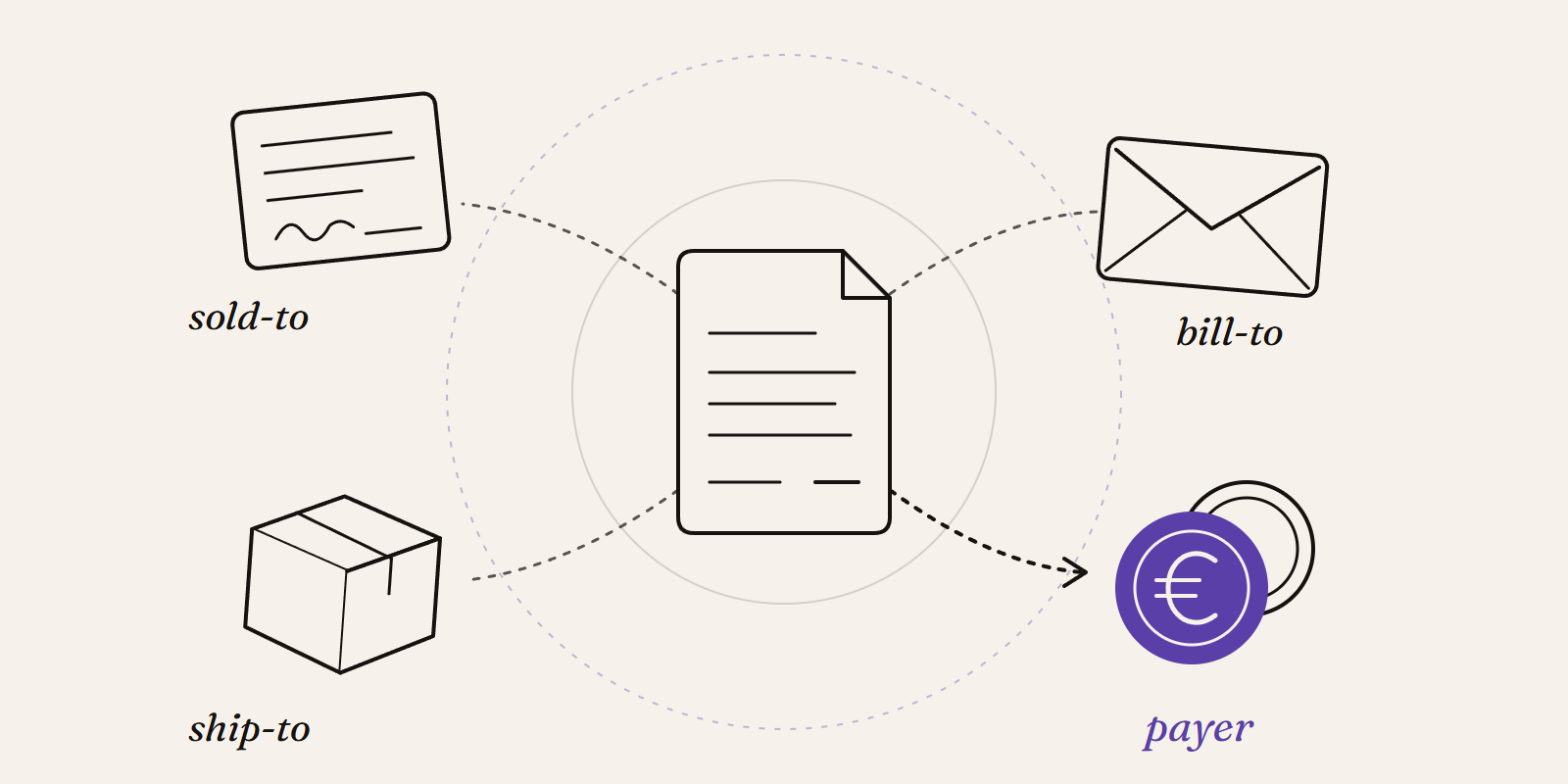
Sold-to, ship-to, bill-to and payer in SAP: who is actually your customer?
Sold-to, ship-to, bill-to and payer in SAP explained with a concrete example: who gets the invoice, whose account the receivable sits on, an...
New Data Panda connectors in August 2026
Seven new Data Panda connectors from August 2026: ECB rates, ProfitPlus Webshop, SAP S/4HANA, Exact Venice, OpusFlow, ABAX and Sprout Social...